NetScore Shopify Connector for NetSuite is a fully automated, real-time integration between NetSuite and Shopify webstore. The connector provides accurate product creation, real-time inventory updates, timely order fulfillment in NetSuite, and status updates to Shopify.
To reprocess an error record,

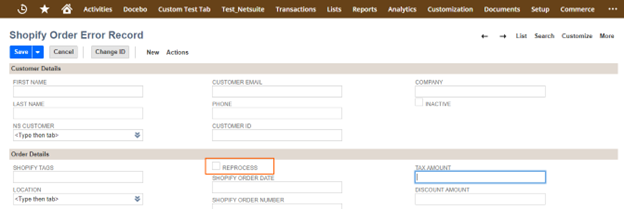
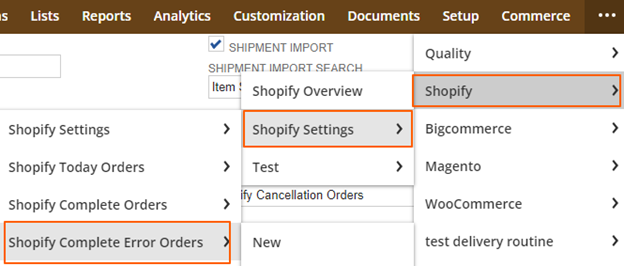
- Go to Shopify error record list at Shopify>Shopify Setting> Shopify Complete Error Orders.
- Select the record of choice.
- Click on edit option to open the error record.
- Enable the Reprocess checkbox and save the record.
Was this helpful?
- Create the item which was not found in NetSuite while importing an order from Shopify.
- Navigate to the respective error record.
- Enter details of the created item under a sub-list called Item as shown in the screen.

- Enable the Reprocess
- Save the error record so that the connector pushes it in NetSuite as a sales order.
Was this helpful?
- Verify the stocks in NetSuite.
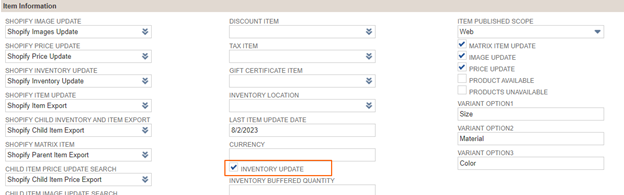
- Ensure that the Inventory Update field on setup record is enabled.
See the below screen for navigation.
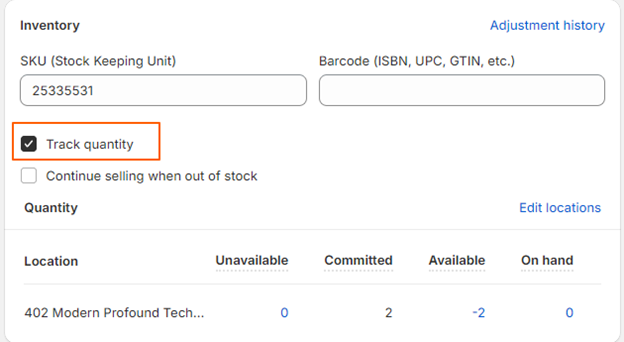
- Ensure that the Track Quantity feature is enabled on Shopify.
Was this helpful?
- Ensure that the process of syncing inventory is turned on in the setup record.
- On Shopify side, ensure that the Track quantity (on product page) is turned on. Otherwise it does not allow REST API to sync the inventory.
Was this helpful?
- To export or create an item over Shopify from NetSuite, ensure that the Item Export to Shopify field is enabled.
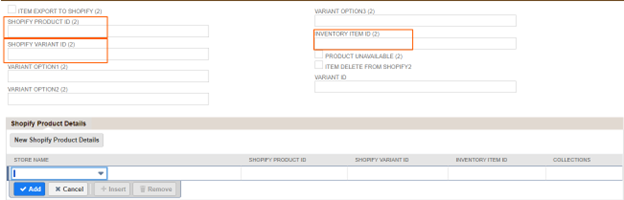
- Once an item is created on Shopify it creates the Shopify IDs.
- The Shopify IDs are created under the Shopify sub-tab as shown below.
Was this helpful?
- Ensure that you have gone through the Fields Mapping Document because the connector relies on it.
- If you have any queries concerning the Fields, then reach out to the developer.
Was this helpful?
- The Shopify customer must have certain information such as Billing or Shipping Information and Email address.
- The connector checks whether the customer exists in NetSuite prior to creating a new customer. If the connector does not find the customer in NetSuite, then it creates the customer.
Was this helpful?
- Ensure that Shipment Export checkbox is enabled in the Set Up record.
- Ensure the tracking number is entered in the appropriate field in the fulfillment record, as the connector refers to it while posting to Shopify.
Was this helpful?
- Verify that the SKU is same on both systems (NetSuite and Shopify).
- Refer to the Fields Mapping document to find the appropriate field to store SKU Value in NetSuite.
Was this helpful?
- Ensure that a record is flagged by enabling the Item Export to Shopify field under Shopify subtab. That’s how the connector recognizes that it must export an item over to Shopify.

- Refer to the Fields mapping document to enter the title information on item record. Without the title Shopify does not accept an item to be created newly.
- If everything is looking good and still the connector does not trigger the export, reach out to NetScore Support.
Was this helpful?
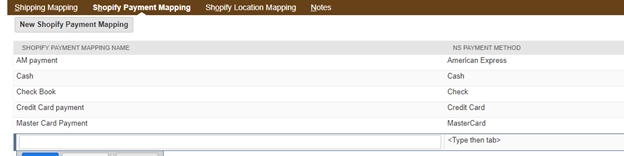
- Ensure that the Payment methods have been mapped appropriately on a Set up record.
- Go to Shopify>Shopify Setting, and verify that the Payment methods are mapped as expected.
- To add a new Payment method, provide the Payment method in Shopify Payment Mapping Name field, and similarly provide a Netsuite Payment method mapped to Shopify Payment Method in NS Payment Method See the screen below.
Was this helpful?
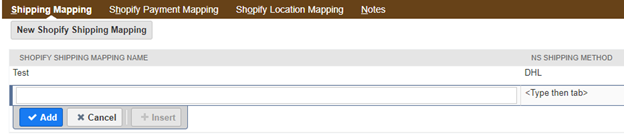
- Ensure that the Shipping methods have been mapped appropriately on a Set up record.
- Go to Shopify>Shopify Setting, and verify that the Shipping methods are mapped as expected.
- To add a new Shipping method, provide the Shipping method in Shopify Shipping Mapping Name field, and similarly provide a Netsuite Shipping method mapped to Shopify Shipping Method in NS Shipping Method See the screen below.
Was this helpful?
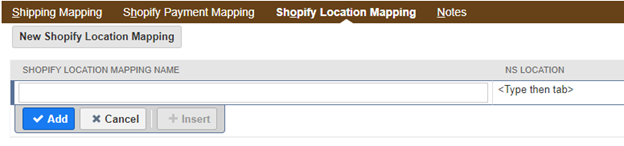
- Ensure that the locations have been mapped appropriately on a Set up record.
- Go to Shopify>Shopify Setting, and verify that the locations are mapped as expected.
- To add a new location, provide the location in Shopify Location Mapping Name field, and similarly provide a Netsuite Location mapped to Shopify Location in NS Location See the screen below.
Was this helpful?
- Go to error record list and search with an order Name/Number.
- If you find the order in the list of error records, then follow the steps listed in our first few questions in this FAQ document.
- If the respective order does not appear on the error record list, reach out to Netscore support.
- To go to error records list, Shopify>Shopify Setting>All Active Error Orders. See the screen below.
Was this helpful?
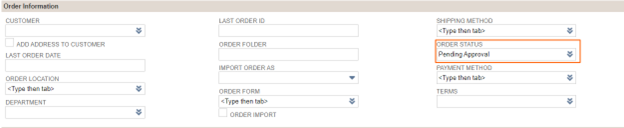
How to change the order’s status prior to importing the orders from the connector for future orders?
- Ensure that the Order Status checkbox is turned on in the Setup record.
- Go to Shopify Setup Record>Shopify Settings, to access the setup record and ensure Order Status check box is turned on. See the screen below.
Was this helpful?